Activating/Deactivating Licenses in VCC
To get started, click on your username in the VCC system and select License Management from the list.
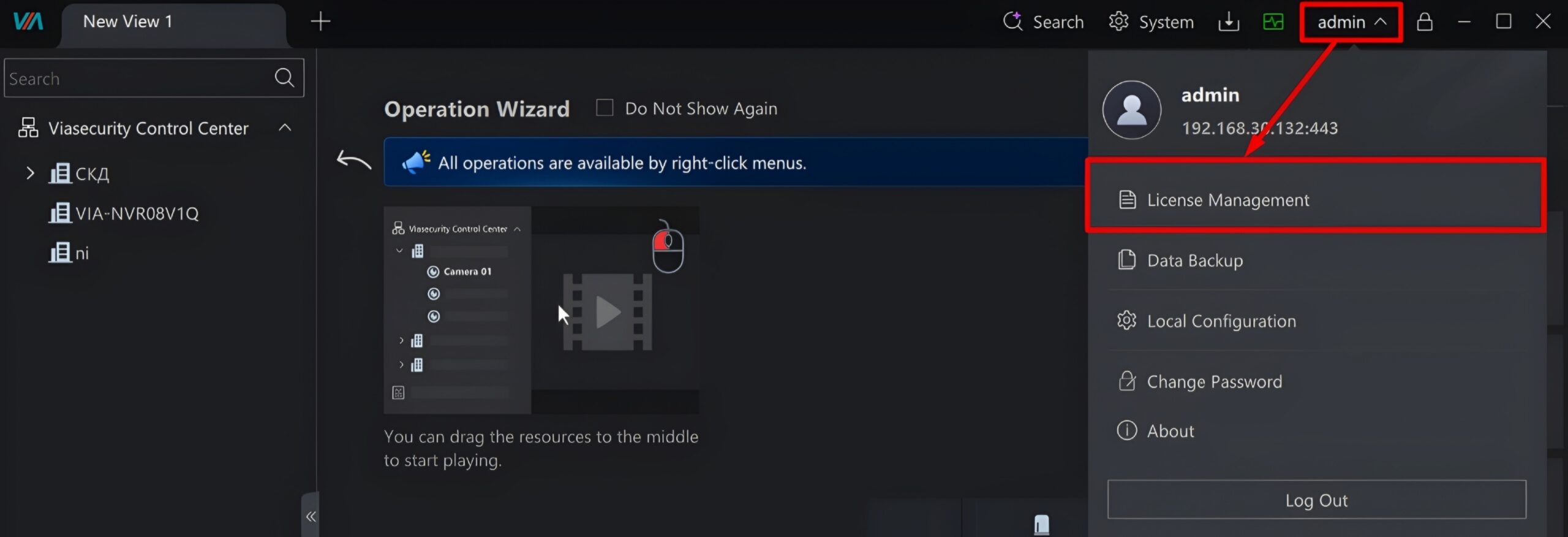
Two buttons will appear in the lower-left corner of the menu — click Activate or Deactivate depending on your needs.

There are two ways to complete this process:
Online Activation (with Internet access)
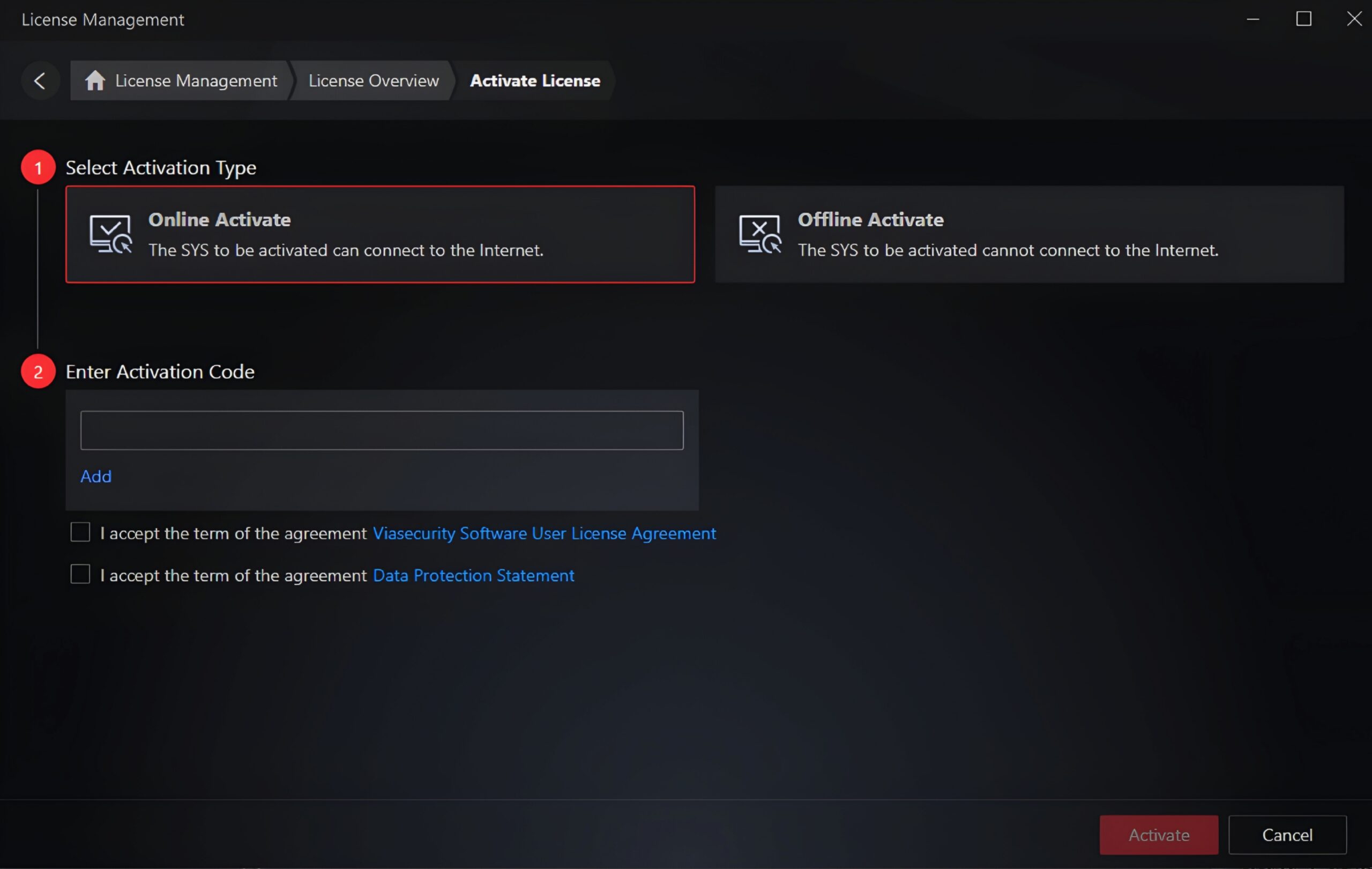
This is the fastest and easiest method for devices connected to the network.
- 1. Select the online method and enter your license key in the corresponding field.
- ○ The activation key must consist of exactly 32 characters (not including dashes) in the following format: XXXX-XXXX-XXXX-XXXX-XXXX-XXXX-XXXX-XXXX.
- 2. If you have multiple keys, click the Add button to enter additional codes.
- 3. Review the required legal documents and agree to them.
- 4. Click the Activate button.
Offline Activation (without Internet access)
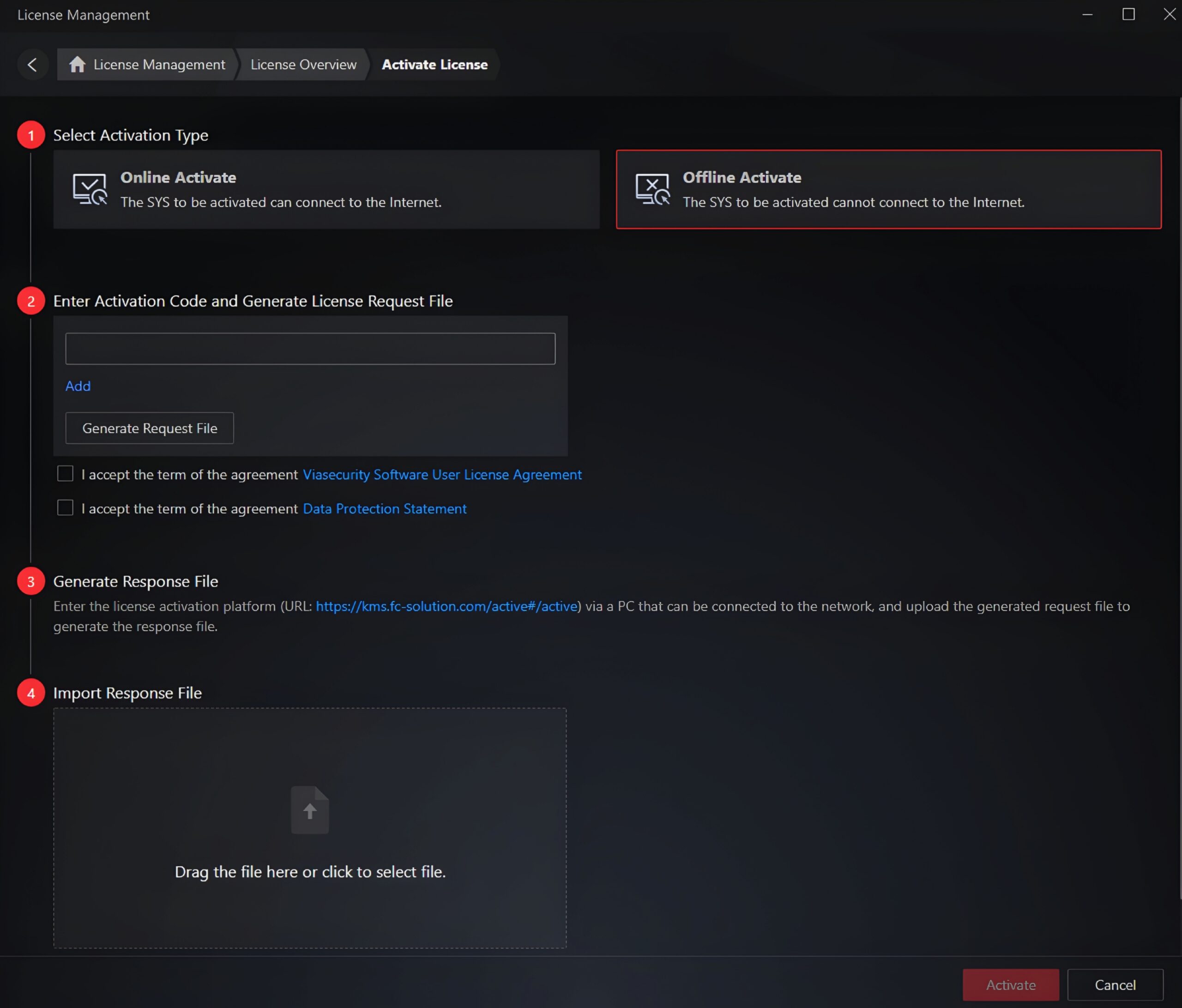
This method is suitable for closed systems. You will need a USB flash drive and any other device with Internet access.
- 1. Select the offline method and enter the license key in the appropriate field.
- 2. Generate a request file (it will be saved as ActivationRequestFile.bin) and copy it to the USB flash drive.
- 3. Transfer the USB flash drive to a device with Internet access, open the Licensing Portal at https://kms.fc-solution.com/active#t/active , and upload this file there.
- 4. The portal will generate a response file — ActivationResponseFile.bin. Save it to the USB flash drive.
- 5. Return to the workstation without an Internet connection and upload the new file to the corresponding field in the program.
- 6. Click the Activate button.
The license deactivation process (both online and offline) follows an identical procedure.